

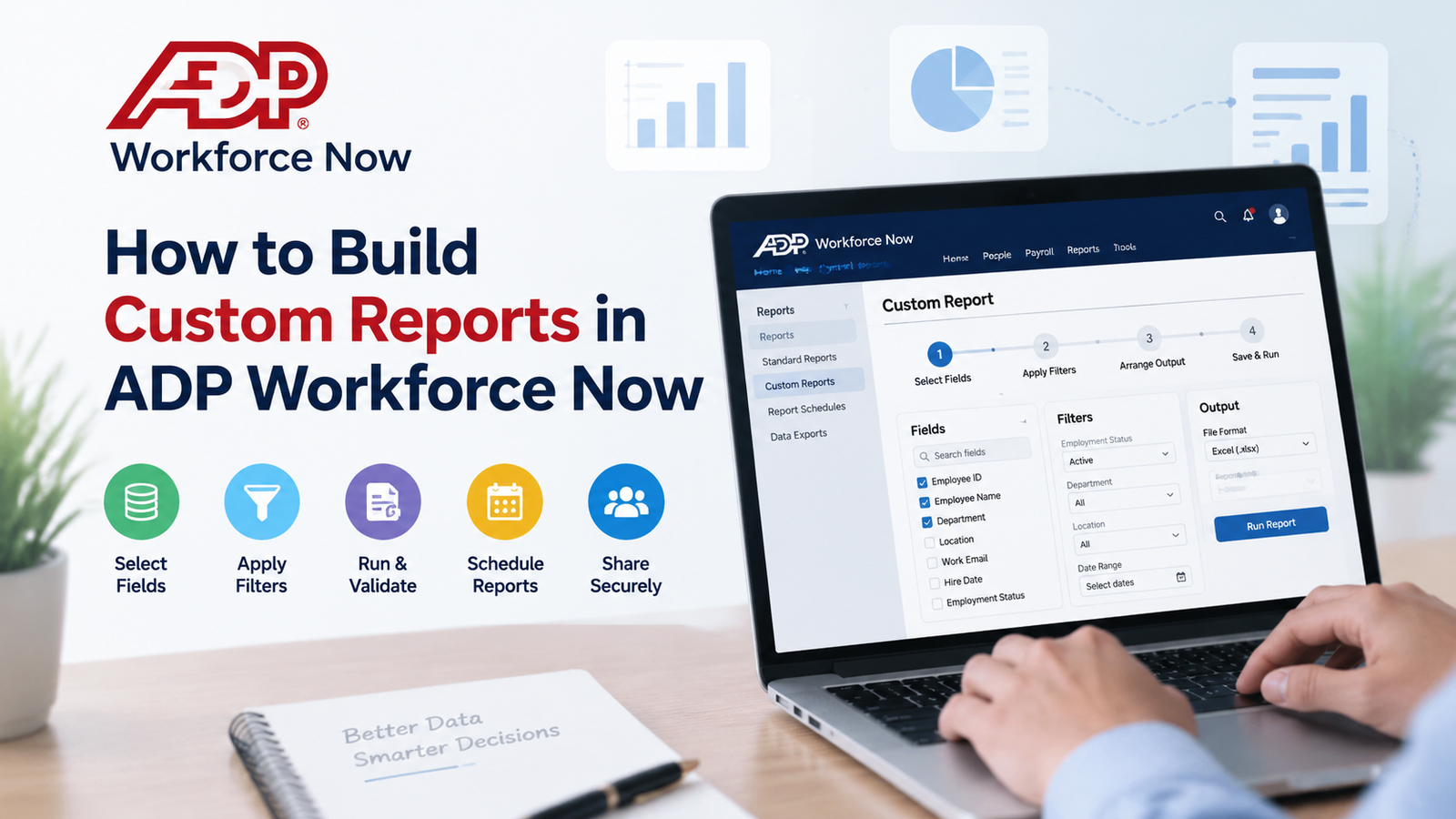
HR and payroll teams often reach a point where standard reports no longer answer the exact question they’re being asked. A finance leader may want payroll costs separated by department. HR may need active employees within selected locations. A benefits team may need a file built around eligibility rules. These situations are where custom reports in ADP Workforce Now become useful.
The reporting process starts before anyone chooses fields. The person building the report needs to understand the business question, decide which employee population belongs in the output, select the correct date logic, check which fields are sensitive, and know how the finished file will be used. A technically correct report can still cause problems when its filters don’t match the request or when recipients interpret the rows differently.
This guide takes a practical approach to ADP Workforce Now reporting. It explains how to plan a report, build it, select fields, work with filters, validate the output, schedule recurring reports, control access, investigate errors, and maintain reports after the original business requirement changes.
It also explains when a custom report has reached its limits. Some reporting requirements eventually become dashboard, analytics, or integration requirements. Knowing that boundary prevents HR and payroll teams from forcing every business problem into another spreadsheet.
TL;DR
Build the Reporting Logic Before You Build the Report
Start by writing down what the report must answer. Define the employee population, date range, required fields, filters, report owner, recipient, output format, and expected result before opening the reporting area. Once those decisions are clear, create the report, select the fields, apply filters, arrange the output, and run a controlled test.
Treat the first result as a draft. Compare employee counts, dates, status values, totals, and several known records with a trusted source. Investigate unexpected rows rather than deleting them manually. Once the output is confirmed, decide whether the report should remain manual, become scheduled, or feed another approved business process.
For recurring ADP Workforce Now custom reports, keep one trusted version wherever possible. Record why the report exists, who owns it, and who receives it. Review the report when payroll configuration, organizational structures, security permissions, or vendor requirements change.
The goal of custom reports in ADP Workforce Now isn’t simply to export information. The goal is to produce an answer that another qualified person can understand, test, and reproduce.
What Custom Reports in ADP Workforce Now Are and When to Use Them
A standard report starts with a report that has already been defined for a common business purpose. It can work well when the available fields, population logic, and output already match what the organization needs. A custom report is different because the report designer controls more of the question being answered.
For example, a standard payroll report may contain the information needed for a payroll review, but finance could ask for a narrower version containing employee ID, department, location, earning type, amount, and selected pay dates. Creating custom reports in ADP Workforce Now gives the reporting team a way to define that specific output rather than repeatedly removing unnecessary information after export.
The same principle applies across HR. A new-hire report may need only employees hired during a selected period. A manager report may need one department at a time. A benefits file may need specific employment fields arranged in an exact sequence. A compliance request may require several fields that normally appear in different operational reports.
ADP Workforce Now reporting should therefore begin with the simplest method that answers the question. Use an existing report when it works. Build a custom one when the required field combination or population is different. Consider analytics when the need involves trends and management views rather than row-level output.
The ADP report builder is useful when the report itself is the finished product or when a controlled file needs to be produced from Workforce Now. It shouldn’t automatically become the answer when another system needs frequent updates. Recurring system-to-system requirements may need a different technical approach.
A useful decision is to ask what happens immediately after the report runs. If a payroll manager reviews it once per month, a custom report may be appropriate. If an employee repeats the same export and upload process every morning, the organization should question whether that work still belongs in a manual reporting process.
Before You Build: Define the Question, Audience, and Data Scope
The quality of ADP custom reporting depends heavily on the requirement that comes before it. Vague reporting requests usually create repeated revisions because different people interpret the same request differently.
Consider a request such as, “Send me employee turnover for the last quarter.” That sounds straightforward, but it leaves several questions unanswered. Does the requester need terminated employees or an actual turnover rate? Should voluntary and involuntary departures appear together? Which company codes belong in the report? Does the date range use termination date, payroll period, or another effective date? Should employees who were rehired during the period appear?
A better requirement might say: “Show employees from the US operations group whose termination date falls between the selected start and end dates. Include employee ID, employee name, department, location, manager, hire date, termination date, and termination reason.”
That definition gives the ADP report builder a clear purpose. It also creates a test. If an employee appears outside the requested date range, the builder can investigate the filter. If a required location is missing, the population rule can be checked.
Define the audience as carefully as the population. Payroll practitioners may need detailed pay information. An executive may need totals by location. A department manager may need only workers within that manager’s responsibility. An outside provider should receive only the information required for the approved business purpose.
The output method matters as well. A report meant for human review can be arranged for readability. A file meant for another application may have strict field names, column sequence, format, and population rules.
Before building custom reports in ADP Workforce Now, document at least these decisions:
| Requirement | Definition |
| Business question | What should someone know or do after reading the report? |
| Population | Which employees, departments, locations, or companies belong? |
| Time period | Which date field decides whether a record appears? |
| Detail level | One row per employee, transaction, earning, deduction, or another record? |
| Required fields | Which columns directly answer the question? |
| Sensitive fields | Which selected values need restricted access? |
| Output | Screen review, Excel, CSV, scheduled file, or another approved format? |
| Validation | Which known record or trusted report will confirm the result? |
| Ownership | Who maintains the report when requirements change? |
This preparation prevents a common reporting mistake: building first and trying to understand the report after the results look wrong.
How to Build Custom Reports in ADP Workforce Now Step by Step
The screen names available to you can differ based on your Workforce Now setup, role permissions, and the reporting experience available in the environment. For that reason, treat navigation labels as directional rather than assuming every account has the same menu sequence.
The underlying process for custom reports in ADP Workforce Now is more consistent: enter the reporting area, choose the appropriate report type, select fields, define population rules, arrange the output, run a test, and validate the result.
Open the reporting area
Start with a user account that has permission to access the required reporting information. Open the available reporting or Reports & Analytics area, then locate the option for creating or managing custom reports.
If another administrator can see reporting choices that you can’t, check security permissions before assuming something is missing from Workforce Now. Reporting access can differ between practitioners, managers, and other user roles.
Choose the report type
The report type determines which fields and record relationships are available. An employee census request should usually begin with employee or HR information, while a payroll-detail requirement may need payroll-related information.
Think about the desired row before selecting the report type. If you expect one row for each employee but select fields associated with repeating payroll transactions, the output can contain several rows for the same person.
Give the report a useful name
Use a name that tells another practitioner what the report does. Names such as HR Active Employee Census, Payroll Monthly Overtime Review, or Benefits Eligibility Vendor File are more useful than Report 2 or New Report Final.
Include a business area, purpose, or frequency when it helps users distinguish similar reports.
Select the required fields
Choose the smallest useful field set first. Employee identifier, employee name, employment status, department, location, manager, dates, payroll fields, time information, compensation fields, and organization-specific values are common choices.
Adding every available field makes testing harder. Start with what answers the business question, then add fields only when they serve a specific purpose.
Add filters
Filters determine which records enter the report. A new-hire report might filter on hire date. A termination report may use termination date. A payroll review may use company code, pay date, department, earning type, or another payroll field.
Document the filter logic because the meaning of the report depends on it.
Arrange the columns
Place stable identifiers near the beginning. Then group fields in an order that matches the user’s task.
A payroll review could begin with employee information, then organizational information, followed by pay-period and payroll values. A file sent to another system should follow the layout required by that system.
Apply sorting and grouping
Sort according to how people will review the result. Managers may want department and employee name. Payroll may want company code followed by employee ID. Finance may want cost center.
Grouping can improve readability, but it can also change how totals are interpreted. Check the row structure before adding calculations.
Run the first test
Use a controlled population when possible. Choose employees you know should appear and a few who shouldn’t. Test people near the edge of the date range. Check employees with unusual status, multiple assignments, or recent changes.
The first run isn’t finished work. It is a test of the reporting logic.
Validate the report
Compare the result with a trusted Workforce Now screen, a known operational report, or records already confirmed by payroll or HR.
This validation step is one of the most important parts of ADP custom reporting. A professional reporting process doesn’t assume that a report is correct because it ran without an error.
Once the report has been tested, save the approved version and document its owner. Strong ADP Workforce Now custom reports should be understandable even when the original builder is no longer available.
How to Choose Fields, Filters, Sort Order, Groups, and Runtime Values
Field selection becomes harder as reporting requirements become more advanced. The main issue isn’t usually finding a field. It is understanding what that field represents and how it relates to other records.
ADP currently describes Workforce Now as supporting standard reports, interactive reports, dashboards, and user-created reporting. Its current reporting page also notes drag-and-drop report creation. That makes the official ADP Workforce Now reporting and insights page useful when confirming the current reporting capabilities available around Workforce Now.
Start with identifiers. Names can change and aren’t always unique, so reports used for matching records often need a stable employee identifier. A practical example appears in Org Chart Studio’s Workforce Now report guide, where Associate ID is used to connect employees and managers in an organization-chart file. That use case is specific, but it illustrates why identifiers matter when reports feed another process.
Next, establish the grain of the report. One row per employee is different from one row per earning, benefit election, time record, or assignment. When fields from repeating records are added to an employee-level report, the same employee may appear on several rows. Those rows aren’t automatically errors. They may be an accurate representation of the selected relationship.
Filters should answer the population question without relying on manual cleanup afterward. If the report is for active employees, define which employment status belongs. If the request covers a region, identify the correct location or organizational field. If the report uses a date range, decide which effective date controls inclusion.
Runtime values can be useful when a report’s logic remains the same while one criterion changes. A manager report might use the same fields each month but allow the person running it to select a department or date range. This keeps teams from saving separate copies for every small variation.
Current third-party instructions also show different navigation labels. Team Engine’s current guide uses Reports → Custom Reports and Create New Report, while other environments document Reports & Analytics and Set Up New. The Team Engine ADP Workforce Now reporting guide is useful as a current example of this variation.
For organizations that need help determining how fields, filters, payroll configuration, and HR processes fit together, Ignite HCM’s ADP HR and payroll consulting services cover Workforce Now support across payroll and HR work. The value of that support is highest when the reporting question reaches beyond selecting columns and requires understanding the process that produced the underlying information.
This is where ADP Workforce Now reporting, ADP custom reporting, and the ADP report builder intersect. The report designer needs to understand both the requested output and the structure of the records behind it.
A useful final test for custom reports in ADP Workforce Now is to explain every field and filter to someone who didn’t build the report. If the purpose of a selected field or condition can’t be explained, it deserves another review.
How to Design Report Output, Totals, and Reusable Views
A report can contain correct information and still be difficult to use. Report design should follow the task the reader needs to complete, not the order in which fields happened to be selected.
Put identifiers and major organizational fields near the front. Keep related values together. Payroll amounts should sit near the fields required to interpret those amounts. Dates should have clear meaning. Avoid filling the report with reference fields that nobody uses.
If the report is being designed as part of a new Workforce Now rollout, reporting requirements should be discussed during implementation instead of being left until the end. Ignite HCM’s ADP Workforce Now implementation service describes client-side implementation work that includes planning, requirements, project ownership, and post-implementation responsibilities. That creates a natural place to define important business reports before the system enters normal operation.
Current instructions from other Workforce Now users also show why output design matters. The Thrive Learning Workforce Now SFTP guide walks through building a custom employee file and selecting fields for a recurring HRIS transfer. In that kind of use case, column structure isn’t merely cosmetic because the receiving process expects specific information.
Totals require another check. Suppose an employee has 3 earnings records and the report repeats the employee’s salary on each row. A simple salary sum can triple the apparent amount. The calculation is mathematically correct but logically wrong for that business question.
For this reason, decide what each row represents before adding totals. If the report has repeating employee records, calculate distinct employee measures separately when the available reporting method permits it. When a report is primarily a transaction report, use totals that belong to those transactions.
Reusable reports also need ownership. ADP Workforce Now custom reports can become difficult to manage when teams copy them repeatedly for small changes. Keep a trusted master when the main logic is shared. Document which copies are allowed to differ and why.
Teams that don’t have enough internal ADP capacity can also use an on-demand support arrangement. Ignite HCM’s Ignite PRODUCTIVITY on-demand ADP support service includes reviews of reporting needs, system configuration, maintenance, and project work. That can be useful when a reporting library has grown without clear ownership.
Good ADP custom reporting makes the output easier to interpret without hiding the detail required for testing. When custom reports in ADP Workforce Now become recurring operational tools, readability and ownership matter almost as much as the original field selection.
How to Run, Validate, Export, Share, and Schedule Reports
A scheduled report should never be the first version of the report. Test manually, confirm the results, and then decide whether recurring delivery is appropriate.
Start validation with a known population. Select several employees whose values you can confirm from an independent Workforce Now screen or an established operational report. Check employees near date boundaries, recent hires, terminations, organizational transfers, and records with unusual payroll conditions.
A practical sequence is:
- Run the report for a known period.
- Confirm the expected population.
- Check selected employee records.
- Review blank or unexpected values.
- Confirm totals where totals are used.
- Test the exported file.
- Get business-owner approval.
- Schedule delivery only after those checks pass.
Don’t manually delete an unexpected employee simply because the person “shouldn’t be there.” Find out why the row appeared. The status filter may be wrong. The selected date may have a different meaning than expected. An assignment relationship could also be producing additional rows.
ActivTrak’s current ADP Workforce Now guide covers creation of a custom report, field selection, sharing, and troubleshooting for an SFTP use case. The ActivTrak ADP Workforce Now SFTP setup guide is a useful external example of how a recurring file process can depend on a correctly built report.
Validation is equally important when the report supports an audit. Ignite HCM’s ADP payroll audit reporting guide explains that many audit requests can be answered using information already available in Workforce Now, provided the team knows which report answers the request and how to organize the output.
Excel can work well for human review, especially when payroll or HR professionals need to inspect rows, sort information, or perform controlled analysis. CSV is frequently used for structured file exchange because it keeps a simple column-and-row format. Choose the format based on what the recipient does next.
Sharing should follow the same access rules as the information inside Workforce Now. An approved user may be allowed to run a salary report inside the system without having permission to email that file outside the organization. The reporting process needs to cover what happens after export.
Scheduling adds another control point. Record who receives the file, what schedule is used, who owns the report, and what happens if that owner leaves. Review recurring recipient lists because staff and vendor relationships change.
A stable ADP Workforce Now reporting process treats validation as part of normal reporting work. The ADP report builder creates the report definition, but the organization still owns the business logic.
That distinction becomes especially important for custom reports in ADP Workforce Now that affect payroll, finance, benefits, compliance, or downstream applications.
10 Custom Report Examples for Payroll, HR, Benefits, and Compliance
The usefulness of custom reports in ADP Workforce Now becomes easier to see when the report starts with a real operating question. The examples below are patterns rather than fixed templates because every Workforce Now environment can have different modules, field names, permissions, company structures, and reporting requirements.
| Report | Business Question | Fields or Rules to Consider |
| Active employee census | Who is currently employed? | Employee ID, name, status, department, location, manager, hire date |
| New-hire report | Who started during a selected period? | Employee ID, hire date, department, location, manager |
| Termination report | Who left during the period? | Termination date, reason, department, location, manager |
| Payroll variance review | Which payroll results need investigation? | Employee ID, pay period, earnings, deductions, hours |
| Overtime review | Where is overtime occurring? | Employee, manager, department, regular hours, overtime hours |
| Compensation change report | Which compensation records changed? | Employee, effective date, compensation fields, job information |
| Leave reporting | Which employees have relevant leave activity? | Employee ID, status, leave dates, department, available leave fields |
| Benefits eligibility report | Which employees meet a defined eligibility condition? | Status, hire date, employee class, available benefit-related fields |
| Audit-support report | Which records answer the auditor’s request? | Employee ID, payroll values, classifications, dates, deductions |
| Downstream employee file | What information does another approved system require? | Stable employee ID, required HR fields, controlled population |
The employee census is usually the simplest example. The important decision is still the population definition. “Active employee” needs to mean the same thing to the person requesting the report and the person building it.
A new-hire report appears simple as well, but date logic matters. A worker’s hire date may answer the request, while another business process may care about an effective date or payroll start condition. Define the request before applying the filter.
Termination reporting becomes more complex when users ask for reasons, voluntary versus involuntary separation, location, manager, or historical organizational information. The builder should confirm which values are available and what they mean in the client setup.
Payroll variance reporting can help payroll professionals isolate records that need review. The report might compare earnings, hours, deductions, or another field relevant to the organization’s payroll controls. This type of work benefits from a clear expected result rather than a large export that someone must search manually.
Overtime reports need similar discipline. Decide which time period controls the output and whether department refers to a worker’s home organization or the location where time was worked.
ADP’s current HR Management information describes employee records, new-hire and separation activity, paid-time-off tracking, global HR records, turnover reporting, and standard or customizable reports. The ADP Workforce Now HR Management features page provides useful official context for the types of workforce information that can support HR reporting.
Ignite HCM also has a real reporting-related use case. Its AHIP case study on payroll backup and FMLA reporting support says AHIP needed help with FMLA tracking and reporting requirements while also addressing payroll continuity. The example shows why reporting is often connected to an operating or compliance requirement rather than existing as an isolated technical task.
Audit reports are another strong example. A workers’ compensation request may need payroll amounts and employee classifications. A retirement-plan audit could need contribution information by pay period. The report should be built around the auditor’s stated question instead of sending a large file containing unrelated payroll information.
A downstream employee file deserves special attention because ADP Workforce Now custom reports can sometimes become the source for another approved business process. Once that happens, changes to field names, sequence, filters, employee identifiers, or timing can affect another system.
This is why advanced reporting work needs more than field selection. The builder must understand how the report is consumed and what will happen if the structure changes.
Report Security, Permissions, and Sensitive Workforce Data
Security belongs inside the report design process because HR and payroll reports can expose information that isn’t visible to every Workforce Now user.
Ignite HCM’s recent guide to ADP Workforce Now security roles discusses role-based access and the need to review who can see sensitive information such as Social Security numbers, bank account details, and salary information. Reporting teams should apply the same principle when selecting fields and sharing outputs.
Start by asking whether each sensitive field is necessary. A manager who needs a department headcount doesn’t automatically need salary information. A vendor file shouldn’t include personal information beyond the approved file requirement. An audit report shouldn’t contain fields the auditor didn’t request simply because those fields were easy to add.
Downloaded files also deserve attention. Access control inside Workforce Now doesn’t follow a spreadsheet after someone downloads it. Organizations therefore need rules for where sensitive reports are stored, who may receive them, and how long copies are retained.
Role differences can also explain why users get different results. One practitioner may have access to a field that another person can’t select. Another user may be restricted to a certain employee population. Compare security settings before changing report logic simply because 2 people see different options.
ADP Professional Services currently includes implementation, advisory work, integration, configuration changes, risk assessment, and other Workforce Now support. When a reporting issue is tied to product permissions or a broader system change, the ADP Professional Services for Workforce Now page is a relevant first-party reference.
Good ADP custom reporting follows the least-access principle. Give report builders and recipients the information they need for the approved task without adding unnecessary exposure.
Security also needs review after organizational changes. Managers move, payroll responsibilities change, vendors are replaced, and temporary project access can survive after a project ends. Report permissions and scheduled recipients should therefore be included in access reviews.
A report that is accurate but visible to the wrong person is still a reporting failure. That is why security should be tested alongside population, fields, filters, and output when reviewing custom reports in ADP Workforce Now.
Common ADP Workforce Now Reporting Problems and How to Fix Them
Troubleshooting custom reports in ADP Workforce Now is easier when the team isolates the type of problem instead of rebuilding the report immediately. Most issues can be traced to population rules, dates, field relationships, security, configuration changes, or assumptions about what each row represents.
| Problem | Possible Cause | What to Check |
| Required field isn’t available | Report type or permissions | Confirm report domain and user access |
| No employees appear | Filter excludes the full population | Test each filter separately |
| Too many employees appear | Population condition is too broad | Check status, company, location, and dates |
| Employee appears more than once | One-to-many record relationship | Remove fields one at a time to find the repeating record |
| Terminated employees appear unexpectedly | Wrong status or effective-date logic | Confirm the population definition |
| Totals don’t match | Different row grain or date basis | Compare definitions before comparing values |
| Another user gets different results | Different permissions or population access | Compare reporting security |
| Scheduled file suddenly fails | Report, configuration, or receiving requirement changed | Test current export and downstream specification |
If a field is missing, first verify whether you’re using the right report type. Don’t assume a field available in one reporting domain automatically appears in another. Then check whether the user has permission to access it.
When a report returns no rows, simplify it. Remove filters in controlled steps until records return. Then add the conditions back one at a time. This method usually identifies the condition excluding the expected population faster than repeatedly changing several settings.
Duplicates need a different approach. Determine what each row represents. A worker with several assignments, earnings, deductions, or other repeating records may legitimately generate several rows. Find the field creating that relationship before deciding whether the duplicates are wrong.
Configuration changes can also affect reports that previously worked. Ignite HCM’s Workforce Now configuration cleanup guide describes how years of quick fixes, staff changes, duplicate codes, outdated reports, and other changes can create configuration drift. Reporting teams should include existing report definitions when reviewing this type of system buildup.
For a wider system review, Ignite HCM’s ADP system maintenance service includes reviews of system capabilities, processes, reporting needs, roles, integrations, audits, cleanup, and maintenance. This is particularly relevant when several reports are failing for reasons that point back to the underlying Workforce Now setup.
Sometimes the problem isn’t the report itself. A recurring CSV may be performing work that should be handled through an integration. ADP describes API Central as a way for Workforce Now clients to connect HR information with internal or third-party applications. The ADP API Central for Workforce Now page becomes relevant when the same file is repeatedly exported and transferred as part of a system process.
The ADP report builder should remain the tool for answering reporting questions. When a report becomes an unofficial integration, the organization should review whether the process still makes sense.
That distinction helps keep ADP Workforce Now custom reports understandable and reduces the number of fragile file-based processes attached to the reporting library.
How to Maintain Custom Reports as Your ADP Setup Changes
Reports age even when nobody edits them. The employee population changes, departments are renamed, payroll codes are replaced, security roles move, vendors change file requirements, and people who understood the original report leave the company.
Maintenance should therefore be part of ADP Workforce Now reporting, especially for recurring reports used by payroll, finance, compliance teams, benefits teams, or connected business processes.
Create a basic report register. It can include the report name, purpose, owner, recipient, frequency, sensitive fields, last review date, and whether the report is still active. The register doesn’t need to become another administrative burden. Its job is to answer a simple question: which reports does the organization currently rely on?
Naming conventions help. Payroll Monthly Overtime Review tells users more than OT Report Final. Benefits Weekly Eligibility Vendor File gives the next practitioner clues about the audience and frequency before the report is opened.
Duplicate reports require special attention. Don’t delete 1 simply because 2 names look similar. Compare their selected fields, filters, date rules, calculated values, schedules, and recipients. A small difference may exist for a valid business reason.
A report owner should also be responsible for reviewing changes that could affect the output. Department restructures, acquisitions, new company codes, updated security, benefit-plan changes, payroll changes, and vendor migrations are common triggers.
For ADP custom reporting, maintenance is mostly about preserving meaning. The report needs to continue answering the same question even when the system underneath it changes.
A mature process also retires reports deliberately. Stop schedules first, confirm that no downstream user or system relies on the output, document the retirement, and then remove or archive the report according to the organization’s process.
This maintenance discipline matters most for custom reports in ADP Workforce Now that have become trusted operational tools. The older and more important a report becomes, the more dangerous undocumented assumptions can be.
When Standard Reports, Custom Reports, Analytics, APIs, or Expert Help Fit Best
A custom report isn’t automatically the right tool simply because a new question appears. Start by identifying the form of the answer.
A standard report is the better starting point when an existing Workforce Now report already provides the required information. Creating another version adds maintenance without adding much value.
A custom report fits when the organization needs a specific combination of fields, a controlled population, reusable filters, or a defined output that the standard report doesn’t provide.
Analytics or dashboards make more sense when the question involves patterns over time. A leader studying headcount movement, turnover, pay trends, or another repeated measure may need a visual analytical view instead of another row-level spreadsheet.
An integration or API deserves consideration when the requirement moves from “show me this information” to “send this information to another application repeatedly.” Frequency, volume, security, and the consequences of a missed file all matter in that decision.
The ADP report builder remains useful for controlled reporting output. It becomes a poor substitute when people are using manual exports to maintain an unofficial daily integration between systems.
Expert help can fit when the reporting requirement crosses payroll configuration, security, HR rules, integrations, or compliance work. It can also help when the organization has inherited dozens of reports and doesn’t know which versions are reliable.
Use the following decision table as a starting point:
| Requirement | Best Starting Point |
| Known recurring operational output | Standard report |
| Specific field or population requirement | Custom report |
| Same report with changing runtime criteria | Reusable custom report |
| Leadership trend analysis | Analytics or dashboard |
| Frequent system exchange | Integration or API |
| Difficult cross-functional reporting issue | ADP or an experienced ADP specialist |
For custom reports in ADP Workforce Now, the important question is whether the report remains the simplest dependable way to answer the need. If the process around the report has become more complicated than the report itself, reassess the method.
ADP Workforce Now Reporting Support: Where Ignite HCM Fits
Reporting problems often reveal a wider operating issue. A missing payroll field may trace back to configuration. A report with incorrect employee populations may expose inconsistent organizational coding. A recurring vendor file may have outgrown the manual process that originally supported it.
Ignite HCM is relevant in these situations because its work centers on ADP payroll and HR environments. The company says its consultants average more than 20 years of direct ADP experience, and its service model covers implementation work, payroll support, system maintenance, compliance-related needs, and ongoing Workforce Now assistance.
That experience doesn’t mean every report requires outside support. Many practitioners can build reliable reports internally once the question, fields, filters, security, and validation method are clear. Outside support makes more sense when the reporting problem crosses several areas or when internal teams don’t have enough ADP capacity to investigate it.
ADP Professional Services is another route when an organization needs first-party Workforce Now support around implementation, system changes, integration, or a larger platform initiative. Other specialists may fit when the primary requirement is an API connection or another narrow technical need.
For ADP custom reporting, provider selection should follow the actual problem. A reporting specialist who understands the screen but doesn’t understand payroll may struggle with payroll logic. An integration specialist may be unnecessary for a monthly HR report. Match the expertise to the task instead of assuming every reporting issue has the same solution.
Ignite HCM has a particularly relevant position when reporting is connected with payroll operations, HR processes, system changes, or continuity requirements. Its published AHIP case gives a practical example of reporting support connected with FMLA requirements and payroll contingency planning.
Strong ADP Workforce Now custom reports should eventually become understandable without relying on the person who originally built them. Someone else should be able to identify the purpose, understand the population, explain the important fields, test the filters, confirm the output, and identify the report owner.
That is the standard worth using when reviewing ADP Workforce Now reporting as a whole. Reporting shouldn’t become a collection of unexplained files that happen to run. Each important report should answer a known business question and have enough documentation to survive employee turnover or system change.
The same standard applies when deciding whether to keep using the ADP report builder or move the requirement elsewhere. A monthly business report can remain a report. A repeated system feed may need integration work. A management trend may belong in analytics.
The final measure for custom reports in ADP Workforce Now is dependable use. The report should give the right people the right answer, based on reporting logic the organization understands and can verify.
Frequently Asked Questions About Custom Reports in ADP Workforce Now
1. Can you create custom reports in ADP Workforce Now?
Yes. Users with the required reporting permissions can create custom reports in ADP Workforce Now by choosing the relevant reporting area, selecting fields, applying filters, arranging the output, and saving the report for future use. The exact menus and options visible to a user can differ based on the company’s Workforce Now setup and security permissions. Before creating a new report, check whether an existing standard report already answers the business question. A custom report makes more sense when the required fields, employee population, date logic, or output format differs from the standard options available.
2. Where is the custom report option in ADP Workforce Now?
The reporting area is generally available through the Reports or Reports & Analytics section, but the exact navigation labels can vary between Workforce Now environments. Users may see options such as Custom Reports, Create New Report, or Set Up New depending on the reporting experience available to them. Security permissions can also affect which reporting menus and fields appear. If another practitioner can access a report-building option that you can’t see, check your assigned permissions before assuming the functionality isn’t available in your Workforce Now environment.
3. What fields should I include in an ADP Workforce Now custom report?
Choose fields according to the business question rather than adding every available field. Common choices include employee ID, employee name, employment status, department, location, manager, hire date, termination date, payroll values, compensation information, time information, and organization-specific fields. ADP Workforce Now custom reports become harder to test when unnecessary fields are included. Start with the smallest field set that answers the request, confirm the results, and then add supporting information where it has a clear purpose. Pay close attention to fields connected with repeating records because they can create multiple rows for the same employee.
4. Why does my ADP custom report show duplicate employees?
Duplicate-looking rows often appear because the selected fields come from records where 1 employee can have several related entries. An employee might have multiple assignments, earnings, deductions, benefit records, or time records. In that case, the extra rows may represent valid detail rather than an actual duplicate. Review the selected fields one at a time and determine which field causes the employee to repeat. The report’s intended grain should also be clear. A report designed for 1 row per employee needs different field choices from a report designed for 1 row per earning or transaction.
5. How do I filter employees in an ADP Workforce Now report?
Filters control which records enter the report. Common filters may include employment status, company code, department, location, hire date, termination date, pay date, or another field tied to the reporting question. Define the population before applying filters. For example, “active employees” needs a clear definition of which status values count as active. A quarterly termination report needs a defined termination-date range. In ADP custom reporting, filters should replace manual cleanup wherever possible. If employees are being deleted from the exported spreadsheet every time the report runs, the report logic probably needs another review.
6. Can ADP Workforce Now reports be exported to Excel or CSV?
Workforce Now reporting workflows can support file outputs such as Excel or CSV depending on the report and available reporting options. Excel is useful when a person needs to review, sort, or analyze the information manually. CSV is commonly used when the information needs a straightforward row-and-column format for an approved downstream process. Always test the exported file before relying on it for recurring work. Check field order, dates, blank values, identifiers, totals, and any formatting requirements expected by the recipient or receiving application.
7. Can custom reports in ADP Workforce Now be scheduled?
Recurring reporting workflows can support scheduled delivery when the required scheduling features and permissions are available in the client’s environment. Before scheduling custom reports in ADP Workforce Now, validate the report manually and confirm who should receive it. Record the report owner, delivery frequency, recipients, and purpose. Scheduled reports should also be reviewed after organizational changes, vendor changes, security updates, or major Workforce Now configuration work. A report that was correct when it was scheduled can become outdated later if the underlying business rules or employee structure changes.
8. Why can’t I see a field in the ADP report builder?
A missing field can have several causes. The selected report type may not contain that field, the user’s security permissions may restrict access, or the field may belong to a different Workforce Now area. Start by confirming that the report type matches the information being requested. Then compare permissions with a user who can access the field, if appropriate. Avoid broadening someone’s access simply to solve a reporting problem without checking whether that person has a legitimate business need to view the information. The ADP report builder should reflect the organization’s reporting and security controls.
9. When should I use a custom report instead of an ADP integration?
Use a custom report when a person or recurring business process needs a defined set of Workforce Now information and a report remains a practical way to provide it. Consider an integration or API when employees repeatedly export, rename, transfer, or upload the same file between systems. Frequency and operational risk matter. A monthly HR report reviewed by a manager may remain a reporting task. A file transferred to another system every day may deserve an integration assessment. The distinction helps prevent ADP Workforce Now reporting from becoming an unofficial system-to-system transfer process.
10. When should an organization get help with ADP Workforce Now reporting?
Outside help can make sense when reporting problems involve payroll configuration, security permissions, integrations, compliance requirements, inherited report libraries, or business rules that internal users can’t confidently trace. Ignite HCM works with ADP payroll and HR environments and provides implementation, system maintenance, payroll support, and related Workforce Now assistance. A reporting specialist should understand why the information is needed, how the underlying process works, and how the report will be validated. The goal should be a report that internal users can understand, test, maintain, and use after the initial issue has been resolved.