

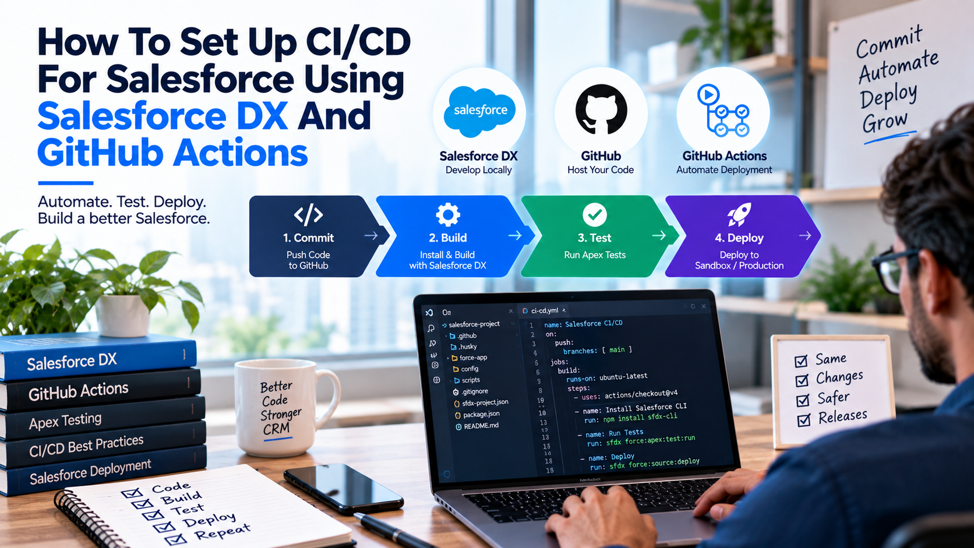
A release manager exports changes from a dev sandbox on a Sunday evening, uploads a change set to QA, watches the validation run, then repeats the same manual sequence again to push into production during an 11pm maintenance window, hoping nothing breaks in front of live users the next morning. Every developer on the team has their own sandbox, nobody’s entirely sure what’s actually in each one, and every deployment carries the same low-grade tension because the entire process depends on a human remembering every step correctly, every single time. This is the exact workflow CI/CD exists to replace, and the shift, once made, changes deployments from a tense, unpredictable event into something closer to routine: a pipeline click, not a manual ritual performed under time pressure late on a weekend.
Setting up CI/CD for Salesforce using Salesforce DX and GitHub Actions means treating your Git repository as the actual source of truth for metadata, automatically validating every proposed change against a clean environment before it’s ever reviewed, and deploying only once that validation has genuinely passed. This guide walks through the entire setup from scratch: the core concepts worth understanding first, generating the SFDX project and connecting it to GitHub, authorizing your Dev Hub securely, and building the actual GitHub Actions workflows that validate pull requests and deploy approved changes automatically.
TL;DR
| Step | What it accomplishes |
| Generate an SFDX project and initialize Git | Establishes the source-driven, decomposed metadata format Git can actually diff and merge cleanly |
| Push to a GitHub repository | Makes the project the shared, trackable source of truth instead of scattered, unsynced sandboxes |
| Authorize your Dev Hub and capture an SFDX Auth URL | Enables scratch org creation and gives GitHub Actions a way to authenticate without exposing credentials |
| Store the Auth URL as an encrypted GitHub secret | Keeps org authentication out of source code while still making it available to automated workflows |
| Build a pull request validation workflow | Automatically validates every proposed change against a clean org before a human ever reviews it |
| Build a deployment workflow triggered on merge or release | Deploys only changes that have already passed validation, removing manual deployment as a point of failure |
| Layer in quality checks | Static analysis, Jest tests for Lightning Web Components, and code coverage reporting catch issues validation alone might miss |
The underlying shift behind every single step covered throughout this guide: metadata changes stop happening directly in a sandbox that isn’t tracked anywhere at all, and start flowing exclusively through a reviewed, tested, automated pipeline instead, every single time a change is proposed, reviewed, or made.
Core Concepts Worth Understanding Before Setup Begins
Several foundational concepts shape every meaningful decision made later throughout this entire guide, and getting genuinely comfortable with them well upfront makes the actual configuration steps that follow considerably easier to understand and apply correctly once they eventually arrive later on in the overall setup process. Teams planning a broader Salesforce delivery model can also review Advayan’s Salesforce consulting services to understand how development, implementation, and ongoing platform work can fit together before defining the CI/CD process itself.
The CLI Has Changed: Use sf, Not the Retired sfdx Commands
The standalone sfdx executable and the older sfdx force:* command style have been retired. The current tool is the unified Salesforce CLI, installed as the @salesforce/cli npm package and run as sf. Salesforce maintains the current Salesforce CLI resources and installation guidance for teams moving their scripts to the newer command structure. The sfdx command still exists but simply forwards to sf under the hood, and several old commands map directly to new equivalents: force:source:push becomes sf project deploy start, and force:source:pull becomes sf project retrieve start.
Source Format: Why Metadata Gets Decomposed Into Many Small Files
Salesforce DX uses a decomposed, human-readable source format stored under force-app/main/default/, where larger metadata types like custom objects and fields get split into many individual small files rather than a handful of large, monolithic ones. This decomposition exists specifically so Git diffs and merges actually work cleanly, since a single small change to one field doesn’t force Git to treat an entire massive metadata file as modified, which would make code review and conflict resolution considerably harder than it needs to be.
Org Development Model Versus Package Development Model
| Model | How it works | Best suited for |
| Org Development Model | Changes are made and tracked against a single, ongoing org context, typically validated against sandboxes before reaching production | Most existing Salesforce orgs already in active use, where a full package-based restructure isn’t practical |
| Package Development Model | Metadata is broken into logical, independently versioned packages, developed and tested in disposable scratch orgs | Newer projects or teams building genuinely modular, reusable components across multiple orgs |
This guide focuses primarily on the Org Development Model specifically, since it genuinely fits the reality most existing Salesforce teams are actually working within right now, though the underlying GitHub Actions concepts still apply similarly if a team later chooses to adopt the Package Development Model instead of it.
Scratch Orgs Versus Sandboxes: Why the Distinction Matters for CI
A scratch org is a temporary, fully configurable Salesforce environment created on demand specifically for testing, and disposed of once it’s no longer needed, making it well suited to automated CI workflows that need a genuinely clean environment for every validation run. A sandbox, by contrast, is a longer-lived, more persistent environment typically used for ongoing QA, UAT, or staging work. Understanding which environment type a given workflow step actually needs, a disposable scratch org for isolated testing versus a persistent sandbox for staged validation, shapes several of the specific configuration decisions covered later in this guide.
Step 1: Generate the SFDX Project and Initialize Git
The practical setup work itself begins with creating the actual SFDX project structure and establishing it as a genuine, working Git repository, the foundation everything else covered throughout this guide builds directly on top of from this specific point forward. Teams that need custom Apex, Lightning components, or deployment-specific engineering can use the same source-driven approach described in Advayan’s Salesforce development services as the technical work moves from development environments toward controlled releases.
Generating the Project
Running sf project generate –name my-salesforce-project creates the standard SFDX project folder structure, including the force-app directory where decomposed metadata will live and the sfdx-project.json configuration file that defines the project’s core settings. This command produces an empty project shell, ready to either receive metadata retrieved from an existing org or serve as the starting point for genuinely new development.
Turning the Project Into a Git Repository
The core commands that establish local version control:
- Running git init inside the project folder initializes a new, empty local Git repository
- Running git add . stages every file in the project for the first commit
- Running git commit -m “Initial commit” takes the first snapshot of the entire project, establishing the starting point Git will track changes against going forward
Connecting the Local Repository to GitHub
Once the local repository exists, creating a new, empty repository directly on GitHub and running git remote add origin <your-repo-url> followed by git push -u origin main pushes the local project up into the cloud, making it the shared repository every team member, and every GitHub Actions workflow, will reference going forward. From this point on, the GitHub repository functions as the authoritative source of truth for the project’s metadata, not any individual developer’s local sandbox or personal machine.
Step 2: Authorize the Dev Hub and Capture an SFDX Auth URL
Before GitHub Actions can do anything genuinely meaningful against Salesforce at all, it needs a secure, reliable way to authenticate itself against the target org, and this step establishes exactly that connection without ever exposing raw credentials inside the repository itself at any single point in the process. Authentication, environment setup, testing, and release preparation also form part of the broader work covered by Advayan’s Salesforce implementation services when teams need a repeatable path from configuration through production deployment.
Authorizing the Dev Hub Locally First
Running sf org login web –set-default-dev-hub –alias DevHub opens a browser window for a standard, interactive login, authorizes the Dev Hub org, and sets it as the default Dev Hub for the project, which is specifically what enables scratch org creation for any workflow relying on the Package Development Model.
Generating and Protecting the SFDX Auth URL
Running sf org display –target-org DevHub –verbose –json returns a detailed JSON output including a field called sfdxAuthUrl, formatted roughly as force://PlatformCLI:: followed by a long encrypted string, and this single value carries real, genuine weight in the entire setup process that follows from this specific point forward.
What this Auth URL actually does, and how it needs to be handled:
- It allows a non-interactive process, like a GitHub Actions runner with no browser and no human present to click through a login screen, to authenticate against Salesforce securely and automatically
- It functions as a genuine credential capable of authenticating against the org it was generated from, carrying the same weight as a password
- It should never be committed to the repository in plain text, and never pasted into a public issue, commit message, or pull request
- It should be stored specifically through GitHub’s encrypted secrets mechanism, covered in the next step, rather than anywhere else in the project
Getting this handling right from the very first time the URL is ever generated avoids the far more painful cleanup work of scrubbing a leaked credential out of Git history later on, a task that’s genuinely difficult to fully undo once it actually happens to a project.
Step 3: Store the Auth URL as an Encrypted GitHub Secret
With the Auth URL now genuinely captured and fully ready to use, the next step makes it securely available to GitHub Actions workflows without ever exposing the underlying value in logs, code, or anywhere else a repository visitor might accidentally happen to stumble across it unexpectedly, at any point.
The Specific Steps to Store the Secret
Navigating to the repository’s secret configuration and adding the value:
- Open the GitHub repository in a browser and navigate to Settings, then Secrets, then Actions
- Click “New repository secret”
- Name the secret something clear and consistent, commonly SFDX_AUTH_URL_DEVHUB for the Dev Hub specifically, with a similarly named secret for each additional target org a pipeline needs to authenticate against
- Paste the full Auth URL value captured in the previous step, then save
Why Encrypted Secrets Matter More Than They Might Initially Seem
GitHub’s encrypted secrets are intended to keep sensitive values out of workflow files while still allowing authorized workflows to use them. GitHub explains how these values are encrypted and handled in its official GitHub Actions secrets documentation, which is worth reviewing before deciding how repository, environment, and organization-level credentials should be managed. This is considerably safer than embedding an authentication credential directly inside a workflow file or configuration script committed to the repository.
Step 4: Build a Pull Request Validation Workflow
With authentication now securely configured and firmly in place across the pipeline, the first genuinely functional workflow validates every proposed change against a target org automatically, catching problems well before a human reviewer ever even needs to manually check whether the code actually deploys cleanly at all. This becomes particularly important when deployments contain API connections, custom integration metadata, or middleware-related changes, areas also covered within Advayan’s Salesforce integration services where testing and controlled deployment are part of keeping connected systems stable.
What This Workflow Needs to Accomplish
The sequence a pull request validation workflow should follow:
- Trigger automatically whenever a pull request is opened or updated against a specific target branch, commonly main or a dedicated release branch
- Check out the repository’s code so the workflow runner has access to the actual metadata being proposed
- Authenticate against the target org using the stored Auth URL secret, without any interactive login step
- Run sf project deploy validate against the target org, which checks whether the deployment would succeed without actually executing it
- Report the validation result back to the pull request, giving reviewers clear, automated confirmation the change is deployable before they invest time reviewing the actual code changes themselves
The Core Validation Command in Detail
Running sf project deploy validate -d force-app/ -l RunLocalTests -w 30 validates the metadata under force-app/ against the target org, running the specified Apex tests and waiting for the validation result. Salesforce’s current sf project deploy validate command reference documents the available test levels, source-directory options, wait behavior, and other flags that can be adjusted for the pipeline. This command does the heavy lifting of checking whether the selected metadata can be deployed and whether the required Apex tests pass.
Why Using a Container Image Simplifies the Workflow Considerably
Many modern GitHub Actions workflows specify a container image with the Salesforce CLI already available, rather than requiring a separate installation step inside every single workflow run. This approach can reduce both the complexity of the workflow file itself and the setup work performed during each execution, though teams should still control versions carefully rather than assuming every future image update is automatically suitable for their pipeline.
Step 5: Build a Deployment Workflow for Approved Changes
Validation confirms a change is genuinely deployable, but a truly complete pipeline still needs a separate, entirely distinct workflow that actually performs the deployment itself, once a specific change has been properly reviewed and formally, explicitly approved by whichever people hold that specific responsibility on the team. Developers involved in this process need to understand testing, source control, and deployment as part of their role, topics also covered in Advayan’s explanation of what a Salesforce developer does throughout the development lifecycle.
Why Deployment Deserves Its Own Separate Workflow
Keeping validation and deployment as 2 entirely distinct, separate workflows, rather than combining them into a single automated step, preserves a genuine human decision point between confirming a change works and actually pushing it into a live, real environment used by real, paying customers every single day.
| Aspect | Validation workflow | Deployment workflow |
| Command used | sf project deploy validate | sf project deploy start |
| What it does to the target org | Nothing; checks whether the deployment would succeed without executing it | Actually applies the metadata changes for real |
| Typical trigger | Every pull request opened or updated | A merge, an approved pull request, or a published release |
| Risk profile | Safe to run automatically and repeatedly on every commit | Should remain gated behind a deliberate, explicit decision |
| Frequency | Frequent, low-stakes | Infrequent, higher-stakes |
A Common Deployment Trigger Pattern
A workflow configured to trigger specifically on release: types: [published] runs when a team publishes a release in GitHub. GitHub documents the behavior of the release event and the published activity type in its official workflow trigger documentation, making it possible to align deployment with a clearly defined release event rather than an informal manual action. This pattern gives the deployment step the deliberate checkpoint the comparison above calls for.
Working With Scratch Orgs Inside a CI Pipeline
For teams working under the Package Development Model specifically, or for any workflow that genuinely benefits from a clean, disposable testing environment on each individual run, scratch orgs add another genuinely useful layer to the overall pipeline that’s worth understanding in real, practical, hands-on detail. Advayan has also discussed using Salesforce DX, source control, and CI/CD for declarative components in its article on zero-click and low-code Salesforce tools, showing that versioned deployment practices can apply beyond Apex alone.
Creating a Scratch Org as Part of a Workflow
The typical scratch org lifecycle within an automated pipeline:
- Check current scratch org usage against the Dev Hub’s daily limits before attempting to create a new one, avoiding a failed workflow run simply because the org quota has already been exhausted
- Create the scratch org using a definition file, commonly stored at config/project-scratch-def.json, which specifies the org’s features, settings, and edition
- Deploy the project’s metadata into the freshly created scratch org
- Run the relevant Apex and Lightning Web Component tests against that clean environment
- Delete the scratch org once testing completes, whether the tests passed or failed, to avoid accumulating unused orgs against the daily creation limit
Salesforce describes scratch orgs as short-term environments that can be created for development and testing. Its official scratch org development guidance also covers Dev Hub authorization, project definition files, and working with source in these temporary environments. Those concepts are particularly useful when each CI run needs an isolated Salesforce environment.
Why Scratch Orgs Solve the “It Works in My Sandbox” Problem
Source-driven development combined with scratch orgs specifically eliminates the frustrating scenario where a change works correctly in one developer’s personal sandbox but fails unexpectedly elsewhere, since a scratch org is created fresh from the project’s own tracked metadata every single time, making the testing environment genuinely reproducible rather than dependent on whatever accumulated, untracked configuration happens to exist in a specific individual’s sandbox.
Layering in Additional Quality Checks
Beyond the core validate-and-deploy workflow already covered earlier in this guide, several additional automated checks catch genuine issues that pure deployment validation alone simply doesn’t address on its own. The same expectation around Git, testing, deployment knowledge, and production troubleshooting appears in Advayan’s guide to skills to look for when hiring Salesforce developers, since a reliable pipeline still depends on developers understanding what the checks are actually protecting against.
The Common Enhancements Worth Adding
| Enhancement | What it catches |
| Prettier formatting checks | Inconsistent code formatting across contributors, keeping the codebase visually consistent regardless of who wrote a given change |
| PMD static analysis | Common Apex code quality issues and anti-patterns that a successful deployment wouldn’t otherwise flag |
| Jest tests for Lightning Web Components | Component-level logic errors in LWC code, run without requiring deployment to any org at all, making this check notably fast |
| Code coverage reporting through a service like CodeCov | Visibility into which parts of the codebase genuinely lack test coverage, beyond simply confirming existing tests still pass |
Why Adding These Incrementally Beats a Complete Rebuild
A team just getting started with CI/CD for Salesforce benefits more from getting the core validate-and-deploy workflow genuinely solid first, then layering in these additional checks one at a time as the team’s comfort with the pipeline grows, rather than attempting to build every possible check simultaneously in the initial setup. Each enhancement added incrementally is easier to test, easier to debug if something breaks, and easier for the team to actually understand and trust once it’s live.
Choosing a Branching Strategy That Actually Fits the Pipeline
A CI/CD pipeline is only as effective as the branching strategy feeding it, since the workflows covered so far all depend on specific, predictable triggers, a pull request opened against a specific branch, a merge into another, and an undefined or inconsistent branching approach undermines that predictability considerably.
A Common, Well-Tested Branching Pattern
| Branch type | Purpose | What triggers from it |
| Feature branches | Individual developers work here, isolated from each other’s in-progress changes | Opening a pull request against the integration or release branch triggers the validation workflow |
| Integration or development branch | Aggregates completed feature work before it’s considered release-ready | Merges here may trigger validation against a shared sandbox, giving the team early visibility into how changes interact |
| Release branch | Represents work formally staged for an upcoming production deployment | A pull request here triggers full validation against production itself, and a merge or published release triggers the actual deployment workflow |
| Main or production branch | Reflects exactly what’s currently live in the production org | Should only ever be updated through the release process, never through a direct, untracked push |
Why Consistency in Branching Matters More Than Which Specific Pattern Is Chosen
No single branching strategy is universally correct for every Salesforce team, and the specific pattern above is a common, well-tested starting point rather than a rigid requirement. What matters considerably more than the exact structure chosen is that the team applies it consistently, since the GitHub Actions workflows covered throughout this guide depend on predictable branch names and predictable trigger events to function correctly. Teams managing a heavily customized org can also use the planning and testing principles in Advayan’s Salesforce integration and customization guide to decide which changes need deeper testing before they enter a release branch.
How This Connects Back to the Workflows Already Covered
The pull request validation workflow from earlier in this guide should trigger against whichever branch represents the genuine gateway to production in your team’s chosen strategy, and the deployment workflow’s trigger, whether that’s a merge event or a published release, should align with whatever event your team has agreed genuinely represents a deliberate decision to deploy. Getting this alignment right during initial setup avoids the confusing, hard-to-diagnose situation where a pipeline appears configured correctly on paper but simply never triggers at the moments the team actually expects it to.
Common Mistakes When Setting Up Salesforce CI/CD
Beyond the specific configuration steps already covered throughout this entire guide, several recurring, genuinely predictable mistakes show up consistently across teams setting up this kind of pipeline for the very first time, regardless of overall team size, experience level, industry, or the underlying Salesforce org’s actual complexity.
Treating validation and deployment as the same step. Combining validation and actual deployment into a single automated action removes the deliberate human decision point that should exist between confirming a change works and actually pushing it live, increasing the risk of an unintended production deployment.
Storing authentication credentials outside GitHub’s encrypted secrets. Pasting an Auth URL directly into a workflow file, even temporarily during initial setup and testing, leaves that credential permanently visible in the repository’s commit history even after it’s later removed from the current version of the file.
Skipping the scratch org cleanup step. Failing to delete scratch orgs after each test run steadily consumes the Dev Hub’s daily scratch org limit, eventually causing legitimate workflow runs to fail simply because no scratch org capacity remains available for that day.
Making metadata changes directly in a sandbox outside the tracked pipeline. Any change made directly in a sandbox that isn’t captured back into the Git repository breaks the core principle the entire pipeline depends on, that the repository genuinely represents the single source of truth for the project’s metadata.
Adding every possible quality check before the core pipeline is stable. Attempting to layer in static analysis, formatting checks, and code coverage reporting all at once, before the basic validate-and-deploy workflow has proven itself reliable, makes it considerably harder to diagnose which specific addition is actually causing a workflow failure when something eventually breaks.
Monitoring and Troubleshooting a Live Pipeline
Once the pipeline is genuinely running in active, ongoing production use, a handful of continuous monitoring habits determine whether the team actually trusts it enough to rely on it fully, or instead quietly reverts to manual verification running alongside it out of lingering, entirely understandable caution. For organizations that don’t have enough internal capacity to own every post-release issue, Advayan’s Salesforce maintenance and support services cover ongoing platform checks and support after development and deployment work has gone live.
What to Watch for on an Ongoing Basis
| Signal to monitor | Why it matters |
| Validation failure rate over time | A rising failure rate may indicate genuine code quality issues, or it may indicate the target org’s configuration has drifted in a way the pipeline hasn’t accounted for |
| Average validation and deployment duration | A steadily increasing runtime often signals growing metadata volume or an expanding Apex test suite that eventually warrants splitting into parallel jobs |
| Scratch org creation failures tied to daily limits | Recurring failures here point to either insufficient scratch org allocation for the team’s actual usage pattern, or inconsistent cleanup after test runs complete |
| Secret rotation and expiration | Auth URLs and other stored credentials can expire or be revoked; a pipeline that suddenly fails authentication across every workflow often traces back to exactly this |
Why Trust in the Pipeline Builds Gradually, Not Immediately
A team migrating away from manual deployments for the first time reasonably remains cautious for a period after the pipeline goes live, often manually spot-checking a deployment or 2 even after validation has already passed. This caution fades naturally as the pipeline accumulates a track record of catching genuine issues before they reach production, and of not producing false failures that waste the team’s time chasing problems that were never actually there. Actively monitoring the signals above, rather than only reacting when something visibly breaks, is what builds that track record deliberately rather than simply hoping it accumulates on its own over time.
Troubleshooting a Failed Workflow Run Efficiently
When a workflow run does fail, checking the specific step that failed, rather than assuming the entire pipeline configuration is broken, usually narrows the actual cause quickly. An authentication failure early in the workflow typically points to an expired or incorrectly stored secret. A failure during the validation or deployment step itself typically points to a genuine metadata or Apex test issue in the proposed change. And a failure during scratch org creation specifically typically points back to the daily limit or definition file issues covered earlier in this guide, rather than anything wrong with the broader pipeline architecture itself.
FAQs
Do I need to use scratch orgs, or can this pipeline work entirely with sandboxes instead? A functional CI/CD pipeline can absolutely be built entirely around sandboxes without scratch orgs at all, particularly for teams following the Org Development Model rather than the Package Development Model. Scratch orgs add genuine value specifically for isolated, reproducible testing and for teams building modular, package-based projects, but they’re not a strict requirement for a working pipeline, and many teams run a perfectly functional validate-and-deploy workflow using sandboxes as the target environment throughout.
What’s the actual difference between sf project deploy validate and sf project deploy start?
The validate command checks whether a deployment would succeed, running the specified Apex tests and confirming the metadata is deployable, without actually applying any changes to the target org. The start command performs the real deployment, actually applying the metadata changes to the target environment. Using validate for pull request checks and reserving start specifically for the deployment workflow, triggered by a deliberate merge or release action, is what maintains the separation between checking a change and committing to it.
Should the deprecated sfdx commands still work if I have existing scripts written with the old syntax?
The sfdx command still exists and forwards to the current sf CLI under the hood, so many older scripts will continue functioning, but relying on this forwarding behavior indefinitely isn’t a sound long-term strategy, since Salesforce’s active development and documentation now focus entirely on the sf syntax going forward, with new features and improvements arriving there first, before any backward-compatible support is even considered. Updating existing scripts and workflow files to use sf commands directly, rather than depending on the legacy forwarding layer, is the more sustainable approach for any pipeline being actively maintained.
How long should validation typically take, and what does a 30-minute wait time actually mean in practice?
The -w 30 flag in the validation command sets a maximum wait time of 30 minutes for the command to return a result, not a guarantee that validation will always take that long. Most validations complete considerably faster than the full 30-minute ceiling, particularly for smaller, more focused pull requests, but larger changes touching substantial metadata, or orgs with a large volume of existing Apex tests to run, can genuinely approach or occasionally exceed that window, which is exactly why the wait time gets configured generously rather than being set to a shorter, riskier value that might cause a legitimate, slow-running validation to fail prematurely for no genuine reason.
Is it safe to run the deployment workflow automatically on every merge to main, without a separate release trigger?
This depends entirely on a team’s specific risk tolerance and release cadence. Some teams genuinely do deploy automatically on every merge to their main branch, treating that merge itself as the deliberate approval gate, while others prefer the additional, more explicit checkpoint a formal GitHub release provides, creating a clearer, more auditable record of exactly when and why a specific deployment to production actually happened. Neither approach is universally correct, and the right choice ultimately depends on how much additional ceremony a specific team and organization.