

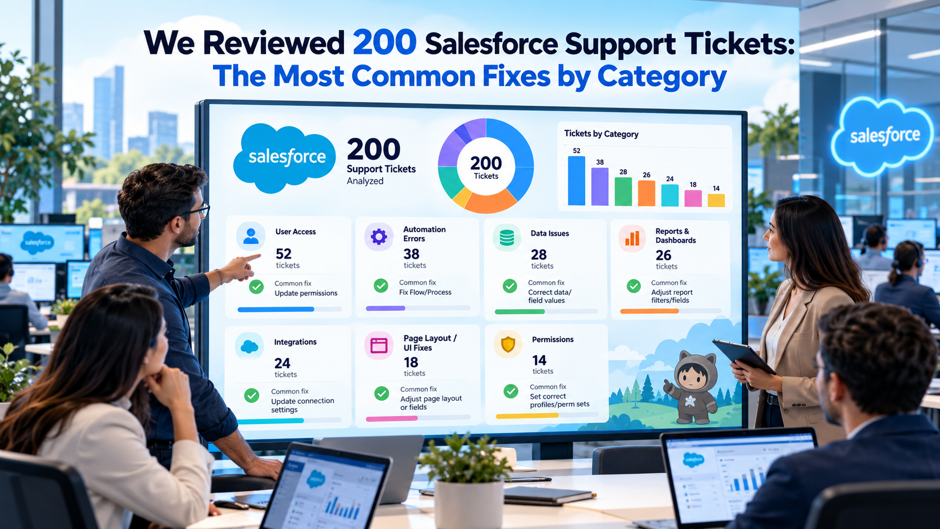
We reviewed 200 Salesforce support tickets and sorted each one by the root cause behind it. The subject line of a ticket rarely describes that cause. A report that a button vanished or that emails stopped arriving usually hides a permission gap or a deliverability switch that changed weeks earlier. Behind those reports sat a short list of repeat causes, and most of them can be fixed with a settings change that an admin makes without code.
This post walks through the most common fixes category by category, in the order a live ticket unfolds. Each category pairs the symptoms users report with the cause and the fix, along with the Setup screens and error messages involved. A triage routine and a set of habits at the end show how to catch the same causes earlier, so fewer tickets reach the queue. The fixes were cross-checked against Salesforce documentation and admin guides, including Trailhead modules.
TL;DR
- Access comes first. Login blocks and missing permissions explain many problems that look like something else, such as a vanished button, a flow that fails for users or a report with missing rows. Comparing what an admin sees with what the user sees rules access in or out within minutes, which makes it the first check on every ticket before any deeper troubleshooting begins.
- The evidence names the cause. The Login History entry, the flow fault email, the import failure file and the debug log usually state what broke. Most fixes are settings changes that an admin makes without code, while governor limit errors need a developer because Salesforce can’t raise those limits. Email failures trace to the deliverability setting or the SPF and DKIM records, and integrations break when tokens expire.
- Habits cut repeat tickets. Releases need field-level security checked as a standard user, and every ticket needs its root cause recorded. A dedicated user for each integration also prevents most token breaks in production. Those habits keep the same causes from returning and make the next review faster, because tickets can be sorted by cause instead of by symptom.
What the 200 Tickets Covered
The 200 tickets fell into 9 categories, and each category has a typical owner and a first check that names the cause faster than a general search does. The table below gives that starting point, and the sections that follow give the symptoms, causes and fixes in detail. The owner column also helps when planning Salesforce admin support capacity.
| Category | Typical owner | First check |
| Login and access | Admin | Login History status, then the profile’s IP and login hour settings |
| Permissions and visibility | Admin | Object and field permissions for the affected user, then sharing |
| Flow and automation | Admin | The flow fault email and the running user’s access |
| Apex and governor limits | Developer | The debug log’s query count and any query or DML inside a loop |
| Data import | Admin | The failure row file and the picklist values in the source |
| Email delivery | Admin and IT | The deliverability access level, then SPF and DKIM |
| Integrations and API | Admin or developer | Token status and the integration user’s permissions |
| Lightning performance | Admin | Browser cache and extensions, then recent page edits |
| Sandbox and deployment | Admin or developer | Field-level security on new fields, checked as a standard user |
Because the symptom and the cause sit so far apart, every section below is organized by root cause. A vanished button often points to permissions, and emails that stopped arriving often point to a deliverability setting that changed weeks earlier. The order follows the path a live ticket takes: reproduce the problem, find the category, then apply the fix.
How We Sorted the Tickets
Every ticket received exactly 1 category, decided by its root cause. That rule keeps the categories clean, because the flow category would otherwise absorb every ticket that mentions a flow, including the ones a 30-second permission check would have closed. The 3 groups below explain the rules that applied to every ticket in the review, from tie-breaking to duplicates.
Root Cause Decides, and the First Fix Breaks Ties A failed flow caused by a missing field permission goes under permissions, and a slow page caused by a browser extension goes under performance, so the count reflects where the fix landed. When a ticket has 2 causes, it goes under the cause that had to be fixed first, so a flow that couldn’t run until access was repaired counts as an access ticket.
Reopened Tickets and Duplicates Count Once The category of a reopened ticket comes from the cause found in the final fix, so earlier guesses that proved wrong don’t change the tally or shift the ticket into another category. The same user reporting the same problem on the same day also counts as 1 ticket, which keeps a burst of follow-up messages from inflating a category.
Requests Are Excluded, and the Closing Role Is Recorded A note such as “please add a field” asks for a change and doesn’t report a fault, so only faults and failures were counted. Each counted ticket also notes whether an admin or a developer closed it, which feeds the typical owner column above and shows whether a recurring category needs better admin documentation or a code change.
A sample of 200 tickets is small, so a different queue may weight the categories differently. Sorting by cause also exposes tickets closed with a workaround in place of a fix: a user who regained access after an admin widened a profile has a closed ticket, yet the permission model underneath may still be wrong, so it belongs back on the review list.
Login and Access Fixes
Restricted IP ranges and multi-factor authentication (MFA) settings are common causes of login tickets. Salesforce lets an admin limit the hours users can log in and the IP addresses they can log in from, and Trailhead’s project on login hours and IP ranges walks through the profile settings involved. Reading the Login History entry for a blocked attempt before changing any setting saves the most time.
- IP ranges and login hours. When a profile has an IP restriction, a login from an unknown address fails, and Login History records the status “Restricted IP” together with the source address. The fix is to add the range to the profile’s login IP ranges or to set trusted IP ranges for the org. A profile with login hour restrictions blocks logins outside the allowed hours.
- MFA and API logins. When a user has MFA for API logins and has connected an authenticator app, Salesforce expects a verification code and returns an error if the user relies on the standard security token. A desktop or API client also fails to connect when the security token isn’t appended to the password, so appending it or adding the client’s IP to the trusted list fixes the connection.
- Custom domains and single sign-on. Some orgs require login through a My Domain URL, so a tool that still points at the generic login address fails until someone updates it. For single sign-on (SSO) users, the delegated authentication authority usually handles lockout policies, so the fix for a locked SSO user sits outside Salesforce, in that authentication system.
Lockouts follow the org’s own login lockout settings, and when the security token is enabled, a user who enters an invalid token too many times is locked out under those same settings. Repeat login tickets from the same person usually trace to travel, a shared device or a phone that lost the authenticator app. Access policies also stay easier to audit when user management follows 1 documented process for granting and removing access.
Permission and Visibility Fixes
Missing access is a frequent hidden cause behind tickets that look like something else. A missing button, a field that won’t save, a flow that fails halfway and a report that shows fewer rows than expected can all come from the same gap in object permissions or field-level security. Trailhead’s flow troubleshooting module shows the pattern well: a user gets promoted, and a screen flow that creates an Account and a Contact fails on the Opportunity.
| Check | What to review | Why it matters |
| Symptom for that user | A screenshot, the exact record and whether an admin sees the same thing | If an admin doesn’t, the cause is access |
| Object permissions | The profile and every assigned permission set | Read, create, edit and delete are separate settings, so a user can read a record without saving it |
| Field-level security | Each field involved in the save, flow or import | Missing edit access on 1 field fails a save, and flows and imports need the same access as manual edits |
| Layout and record page | The layout and record page assigned to the profile, compared with a working user | A button can exist and still not appear if it isn’t on the assigned layout |
| Fix as the affected user | “Log in as” where the org allows it | The ticket closes only after the user confirms the result |
Record-level access is a separate layer from object and field permissions. A user with read access to an object still sees only the records that org-wide defaults, the role hierarchy, sharing rules and teams allow, so a report with fewer rows than expected often comes from sharing. Role changes deserve a check of their own, because a promotion changes what a person needs to do in the org, and reviewing the permission sets tied to the old role and the new role in the same sitting prevents many of the gaps.
Flow and Automation Fixes
A failing flow usually leaves evidence behind, and reading that evidence before editing anything is the fastest route to the cause. The 3 points below cover where the evidence sits, how to debug and which failure patterns reach a queue most often. Flows also follow the same transaction limits as code, so a flow that behaves with 1 record can fail with 200.
Fault Emails Go to the Last Editor When a flow fails, Salesforce sends an error email. The email goes to the admin who last modified the flow, or to the Apex exception email recipients, and it includes the error message from the failure along with details about each element the flow interview executed, so the last editor receives the failure emails, which explains many cases where nobody noticed a broken flow.
Debugging Starts in Flow Builder Run the built-in debug, which shows each element and the values passing through it, then repeat the run as the affected user, because admin runs hide access problems. Clear naming and narrow entry conditions also shorten these sessions. Next, open the version history, because a ticket that arrives right after an edit is almost always caused by that edit.
Common Failure Patterns A “Failed to create record” message on a Create Records element usually means the running user lacks object or field access, and a flow that works for admins and fails for users has the same gap, hidden by admin rights. A record-triggered flow that fires on the wrong records has entry conditions that are too broad. A flow that runs and writes nothing often has a default outcome catching records meant for another path, and errors that appear only during bulk loads point to a query or update inside a loop.
A flow with no clear owner collects edits from several admins, and each edit adds a new way to fail, so an owner for every production flow reduces that risk. Fault paths on record elements such as Create Records let a flow show the user a clear message while the technical detail goes to the admin, so a failure produces 1 useful ticket in place of a vague complaint.
Apex and Governor Limit Fixes
Governor limit errors come from code that works on 1 record and fails on 200. Salesforce caps what a single transaction can do, and support can’t raise the caps. The error text names the limit that was hit: “Too many SOQL queries: 101” or “Too many DML statements: 151.” A synchronous transaction allows 100 SOQL queries and 150 DML statements, and an asynchronous one allows 200 queries and 150 DML statements. SOQL is Salesforce’s query language, and DML covers insert, update and delete operations.
- Queries and DML inside loops. A trigger that runs a query for each record passes a test with 1 record, and the same trigger makes 200 queries when 200 records load. ApexHours’ guide to the “Too many SOQL queries: 101” error and the other sources we checked agree on the fix: keep queries and DML outside loops, and collect records in a list or map so that 1 query or 1 DML statement handles the whole collection.
- Stacked automation. The limits apply to the whole transaction, so every trigger, class, flow and API call that runs in the same context draws from the same 100 queries. A managed package or a rollup tool can push an otherwise healthy org over the limit. In 1 documented case involving a rollup summary tool, switching the calculation mode to scheduled cleared the error.
- Recursive triggers. A trigger updates a record, which fires the trigger again, and the count climbs until the limit stops it. A static variable that tracks whether the trigger already ran is the standard guard, and a debug log for the failing user shows the query count as the transaction runs, so the automation spending the queries is easy to spot.
Test classes are the cheapest prevention. A test that inserts 200 records in a single call fails on a hidden query loop long before a user finds it in production, at far lower cost than a failing customer save. Developers who follow Apex trigger best practices usually write that bulk test for every trigger, and release rules can make a failing bulk test block the deployment.
Data Import Fixes
Import failures are usually data problems, and the failure file says which. Most import tools write a file of failed rows with an error code and a description beside each. Reading the failure file before changing any setting turns a vague report that the import didn’t work into a list of specific rows with specific reasons. The table below lists the failures the sources we checked report most often.
| Failure | Cause | Fix |
| Picklist mismatch | The source value doesn’t match an allowed option, such as “Closed Won” against “Closed-Won” | Correct the source value or add the option to the picklist |
| Required field or validation rule | The row is incomplete or breaks a rule | Fix the row, or adjust the rule for the load window and restore it afterward |
| Missing field access | The loading user lacks permission on a field | Grant the permission, as described in the permissions section |
| Script statement errors on a large load | Triggers and flows fire on every imported record | Lower the batch size in steps of 10 until the errors stop |
| Unmapped required fields | A required field has no source column | Confirm the mapping covers every required field on the target object |
A dry run on 20 rows drawn from different parts of the file catches most of these problems before they multiply. Before a large load, a list of every automation that will fire on the imported records prevents surprises, since flows, triggers and duplicate rules all run unless someone has paused them on purpose. A single source of truth for picklist values and a pre-load check for blank required fields remove most rejected rows.
Email Delivery Fixes
Emails that never leave Salesforce cause more confusion than emails that land in spam, because nothing reports the failure. Salesforce marks the message as sent, and the recipient never sees it. Team Ascend’s guide to email deliverability in Salesforce covers the settings in depth. The 3 points below run from the quickest checks to the ones that need an IT team, so they work best in order.
Salesforce Deliverability Settings Confirm that Setup > Email > Deliverability reads “All Email” in production: “System Email Only” lets system messages such as password resets through, and “No Access” blocks every outgoing message. Verify the org-wide email address and the sending user’s address under Setup > Users, since an unverified address can fail silently in Flow email actions and workflow alerts, then use Setup > Email > Test Deliverability to prove the org can send at all.
Headers, SPF and DKIM When a message lands in spam, the headers of a delivered copy show why, because “spf=fail,” “dkim=fail” or “dmarc=fail” names the authentication step that broke. Sender Policy Framework (SPF) lists the servers allowed to send for a domain, so add the include:_spf.salesforce.com entry, merge multiple SPF records into 1 and keep the DNS lookups under 10. DomainKeys Identified Mail (DKIM) signs each message, so confirm the key is active under Setup > Email > DKIM Keys and that the CNAME records are published in DNS.
DMARC and Bulk Sender Rules Domain-based Message Authentication, Reporting and Conformance (DMARC) sets the policy for failures, so SPF and DKIM need to align with the domain shown in the From address of each message sent. Since February 2024, Gmail and Yahoo require authentication from anyone sending more than 5,000 messages a day, along with easy unsubscribe options and low spam complaint rates.
Email tickets often arrive months after a domain change, when the person who made it may have moved on, so notes on when DKIM was activated and who owns the DNS zone shorten later investigations. Sandbox tests set to “All Email” reach real addresses in copied data, so masking the data comes first, and a written email setup checklist covers the safe order of changes.
Integration and API Fixes
Integration tickets mostly come down to the connecting user’s permissions and expired tokens. An integration runs for weeks, someone resets a password or changes a policy, and the connection stops with no obvious reason. The table below matches the symptoms reported across the vendor guides we reviewed to check and fix for each one, so a ticket can be routed quickly.
| Symptom | What to check | Fix |
| “OAuth expired” or “requested resource does not exist” | Token status | Disconnect, reconnect and authorize again |
| The token fails on the first connect | The connecting user’s permissions | Confirm API Enabled, OAuth access and permission to approve uninstalled connected apps |
| The token expires unexpectedly | A password reset, permission change, revocation or session policy change | Reauthenticate and avoid scheduled password changes on the integration user; in orgs older than 2016, review the revoke-refresh-tokens-on-logout setting |
| The tool can’t connect to a locked-down org | An IP restriction or a custom domain login | Remove the restriction, allowlist the tool’s IPs or point the tool at the My Domain URL |
| Records or files are missing, or rows land in the wrong place | Object and field permissions, API usage and field mapping | Grant the missing permission, check the API limit and confirm required fields are mapped on both systems |
Some Salesforce editions don’t include API access at all, so the edition is worth checking on day 1 of a new connection. PromptLoop’s integration troubleshooting guide shows the reconnect flow for expired authorization. Each integration also works best with its own dedicated user, because a shared admin login gets its password reset and its sessions revoked for reasons unrelated to the integration, and either event can break the connection. Feature licenses matter too: a tool that reads Knowledge or CRM Analytics data needs the matching license assigned to its user.
Lightning Performance Fixes
Slow pages and missing components usually trace back to the browser or to a recent page change, so the plain checks come first. Those checks cost minutes and keep the ticket out of Setup until the evidence points there, and each result gets noted on the ticket. The 3 points below cover them in the order that saves the most time.
- Local checks first. Clearing the browser cache and disabling extensions that inject scripts into pages rules out the most common local causes, and a stable network connection rules out the rest. An admin guide puts the practical minimum for Lightning at around 3 Mbps, though real needs depend on how heavy the pages are. If the problem follows a user across browsers and devices, the cause sits in the org itself.
- Heavy pages and recent edits. Heavy record pages with many components and related lists load slowly, and removing components 1 at a time finds the culprit faster than guessing, and a Health Check run can surface odd settings. When a problem starts right after a Lightning page edit, rolling back the latest customization is the quickest test of whether that edit caused it.
- Missing buttons. Permissions come first, since a user without access won’t see the action. Page assignments by app, record type and profile can also send different users to different pages, which explains why 1 person sees a button and a teammate doesn’t. Comparing 2 users side by side, 1 with the problem and 1 without, usually names the cause within a few minutes.
Timing can point to a background process. A slowdown that repeats at the same hour each day may come from a scheduled job or a batch process, so the reporter’s exact time of day is worth recording when the ticket is logged, because it makes the pattern visible. Moving the job to a quieter window is the usual fix.
Sandbox and Deployment Fixes
Deployments break access more often than they break code. After a release, the new custom fields and objects exist, but nobody can see them, because field-level security and object permissions weren’t updated to match. An admin who tests the release from an admin login sees everything working. The 2 points below belong on every release list, so the same gaps don’t return after each deployment.
Components and Access Check that every custom field and object named in the release note exists in the target org, then update field-level security and object permissions so each profile or permission set that uses the new components has access. Permission sets and profiles deploy as metadata, so including them in the same release as the new fields carries field-level security along with the fields.
Standard-User Sign-Off Standard users see fewer components than admins, so opening the affected pages as a standard user is the step that confirms the release. Admin access covers every object and page component, so a missing field looks fine to an admin and broken to the user. A release that passed only an admin check hasn’t really been tested for the people who will use it.
A sandbox’s email setting is restrictive by default, and a refresh or a configuration copy can carry that setting into production so that outbound email stops with no error message. A short release note for each deployment, with the date and a list of the components and permissions changed, shows what changed when a ticket arrived 3 days later saying “this stopped working.” Running the same checks in a full sandbox first catches surprises before production does, and a Salesforce sandbox strategy defines which sandbox suits which kind of release.
A Triage Routine for Any Ticket
A fixed sequence beats intuition, because it stops a support team from chasing a complex cause while a simple one sits in plain view. The 8 steps below fall into 3 groups, and each step answers 1 question and leaves a piece of evidence in the ticket. The same order applies to every ticket, including the obvious ones.
Reproduce and Isolate (Steps 1 and 2) Can we see the failure, and is it access or configuration? Record the exact record, user, time and steps, then test as an admin and note whether the admin sees the same failure. If the admin can’t reproduce the problem, access is the most likely cause and code can wait. If the admin sees the same failure, the cause sits in configuration or code.
Investigate and Match (Steps 3 to 5) Did a recent change cause it, and what does the system say? Look at flow edits, deployments, permission changes and password resets from the past few days, then read Login History, the flow fault email, the failure row file or the debug log. A debug log has to be started for the affected user before the problem is reproduced.
Fix, Verify and Record (Steps 6 to 8) Which single change should we try, and does it work from the user’s side? Record the setting changed and the result after retesting, then get confirmation from the affected user before closing. The last step is to write the cause in the ticket in place of the symptom, because a ticket system that stores only the symptom can’t be sorted by cause later.
A required “root cause” field on the ticket form makes step 8 automatic, and it lets a later review count tickets by category without rereading each one, which turns individual complaints into a dataset that shows where the org keeps breaking. Consistent triage also lets any team member pick up a ticket midway and see what has already been tested.
Habits That Cut Ticket Volume
The cheapest ticket is the one that never opens. Each habit below maps to categories from this post, so a team can begin with the habits that match its own busiest categories. Starting with 2 or 3 habits works better than adopting the whole list at once, and none of them needs new tooling or more than a small change in routine.
- Access habits. Review permissions on the day a role changes by comparing old and new access side by side, grant new access through permission sets so it can be audited and removed cleanly, and sign off releases as a standard user because admin logins hide missing access. These habits keep the reasons for each person’s access on record, which makes the next access ticket much faster to close.
- Automation and integration habits. Route flow failure emails to a shared team inbox so a failure doesn’t depend on whoever edited the flow last, and test triggers and flows with 200 records before release, because batch-size testing exposes queries and updates hiding inside loops. Keep 1 dedicated user per integration, because personal accounts collect password resets and policy changes that break connections.
- Release and record-keeping habits. Put a deliverability check on the release list, confirming the access level and verified addresses after each release, and keep a dated change log of every flow, permission and deployment change so the question “what changed?” has an answer in seconds. Tag every ticket with its root cause, which makes it possible to repeat this review in 6 months and see which fixes worked.
Recording the ticket count per category before starting, then comparing it 3 months later, shows which habits moved a figure and which didn’t, so the next round of effort goes where it paid off, and a habit that moves nothing is worth replacing. A periodic Salesforce health check gives a second view of the same trends from the configuration side.
FAQs
What are the most common Salesforce support tickets? Access problems such as login failures and missing permissions come up constantly, followed by flow errors and email delivery problems. Integration failures and governor limit errors are less frequent but take longer to diagnose, because their evidence sits in logs and code. Access is the first place to look on most tickets.
Why can a user log in from the office but not from home? The profile probably carries an IP restriction, and Salesforce blocks logins from addresses outside the allowed range. Login History shows the status “Restricted IP” beside that user’s attempt. Adding the range to the profile or adjusting the org’s trusted IP ranges resolves it.
Why does my flow work for me but fail for my users? Admins have wider access than most users. If a user lacks object or field permissions, a Create Records element fails for them even when the flow logic is correct. Fixing the access and retesting as that user confirms the result before the ticket closes.
What does “Too many SOQL queries: 101” mean? A single transaction ran more than 100 queries in a synchronous context, or more than 200 in an asynchronous one. It’s a hard limit that Salesforce support can’t raise. The fix sits in the code: moving queries out of loops and bulkifying triggers so 1 query handles the whole batch.
Why aren’t my Salesforce emails arriving? The deliverability access level is the first check, since it should read “All Email” in production. After that, the org-wide email address needs to be verified, and a test message from Setup shows whether the org can send. If the test arrives but mail lands in spam, the SPF, DKIM and DMARC records are the next place to look.
Why did an integration stop working with no changes on our side? A password reset, a permission change, a revoked token or a session policy change on the integration user can each expire the token. Reauthorizing the connection restores it, after confirming that the user still has API access and the needed object permissions.
Why does a data import fail on some rows? The failure row file names the reason for each row. Common causes are picklist values that don’t match and required fields left blank, and a loading user without permission on a field fails in the same way. Fixed rows can be reloaded as their own set.
Why is a button missing for 1 user but not for another? Profiles, permission sets, record types and page assignments can all differ between the 2 users. The button may sit on 1 page layout but not the other, or the second user may lack the permission it needs. A side-by-side comparison of the 2 users usually finds the difference within a few minutes.